How to Compress Images Without Losing Quality
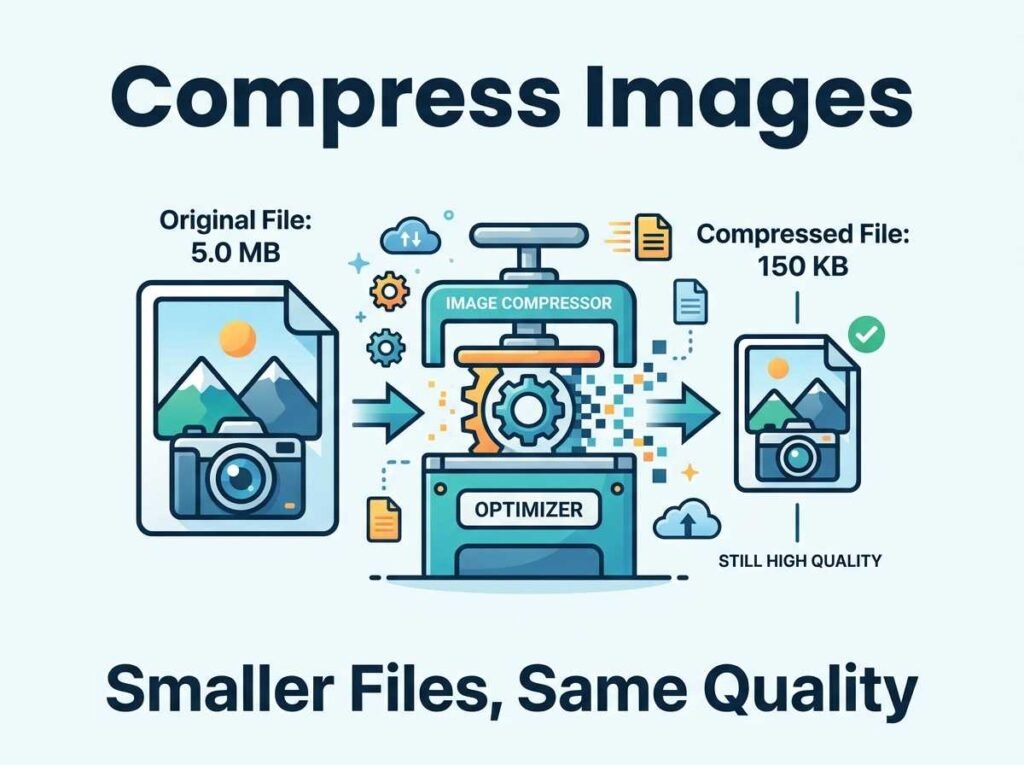
Large images are the most common reason websites load slowly, yet you do not have to sacrifice how they look to fix it. Learning how to compress images the right way lets you cut file size dramatically while keeping them sharp. The result is faster pages, lower bandwidth, and a better experience for every visitor, especially on mobile.
This guide explains how image compression works, how to keep quality high, and which format to choose for the smallest files.
What Image Compression Actually Does
Compression reduces the amount of data needed to store an image. There are two kinds. Lossless compression removes only redundant data, so the image is identical but smaller. Lossy compression removes detail the eye is unlikely to notice, which shrinks the file much more.
For photos on the web, lossy compression at a sensible level is the sweet spot. It can cut a file to a fraction of its original size with a difference most people will never spot. The skill is choosing a quality level that saves space without crossing into visibly soft or blocky territory.
Why Compressing Images Matters
Every image on a page has to download before it appears, and big files make visitors wait. Slow pages cause people to leave and hurt your search ranking, since speed is part of Google’s Core Web Vitals.
Compressing your images delivers several benefits at once:
- Faster load times that keep visitors from leaving
- Better SEO through improved Core Web Vitals scores
- Lower bandwidth costs for your hosting
- Smoother mobile experience for users on slower connections
Because it touches every page view, compression is one of the highest-impact things you can do for site performance.
How to Compress Images the Right Way
The easiest method is to use an image compressor that lets you control quality and see the result before downloading.
The process looks like this:
- Add your image to the compressor.
- Lower the quality gradually and watch the new file size update.
- Stop when the file is small but still looks sharp, usually around 70 to 80 percent quality.
- Download the compressed version and use it on your site.
Watching the preview as you adjust is the key. It lets you find the exact point where the file is as small as possible without any visible loss, rather than guessing.
Choosing the Right Image Format
Format matters as much as quality when it comes to file size:
- JPG is best for photographs, offering small files with good quality.
- WebP produces the smallest files at similar quality and is ideal for the web where it is supported.
- PNG is best when you need a transparent background or crisp text and logos, though files are larger.
For most website photos, WebP gives the smallest size, with JPG as a reliable fallback. Switching a photo from PNG to JPG or WebP alone often cuts the file size significantly.
A Mistake to Avoid
The one thing that genuinely ruins quality is enlarging an image beyond its original size. When you scale a small image up, the tool has to invent pixels, and the result looks soft or blocky no matter how you compress it.
Always start from the largest, highest-quality version you have and compress down from there. Shrinking keeps images sharp; stretching does not. If you also need to change the dimensions, resize first and then compress for the cleanest result.
Keeping Your Images Private
Image compression often involves personal photos or client work, so where the processing happens matters. A browser-based image compressor does everything on your device, meaning your images are never uploaded to a server. You can confirm this by going offline; the tool keeps working because it never needed a connection.
Frequently Asked Questions
Will compressing an image reduce its quality?
At sensible settings, the difference is barely visible. Around 70 to 80 percent quality usually cuts file size dramatically while keeping the image sharp.
Which format gives the smallest file size?
WebP generally produces the smallest files at similar quality, which makes it ideal for the web. JPG is a strong, widely supported alternative for photos.
Does compressing images help SEO?
Yes. Smaller images load faster, which improves Core Web Vitals, and page speed is a factor in search rankings.
Are my images uploaded when I compress them?
Not with a browser-based tool. It processes everything on your device, so your images stay private and are never uploaded.
Compress Your Images Now
Faster pages start with lighter images, and you can shrink them without any visible loss. Open the image compressor, drop in a photo, and find the perfect balance of size and quality in seconds. For the full toolkit, see our guide to the free image tools for creators and websites.