How to Test for Dead Pixels (Free Color Screen Test)
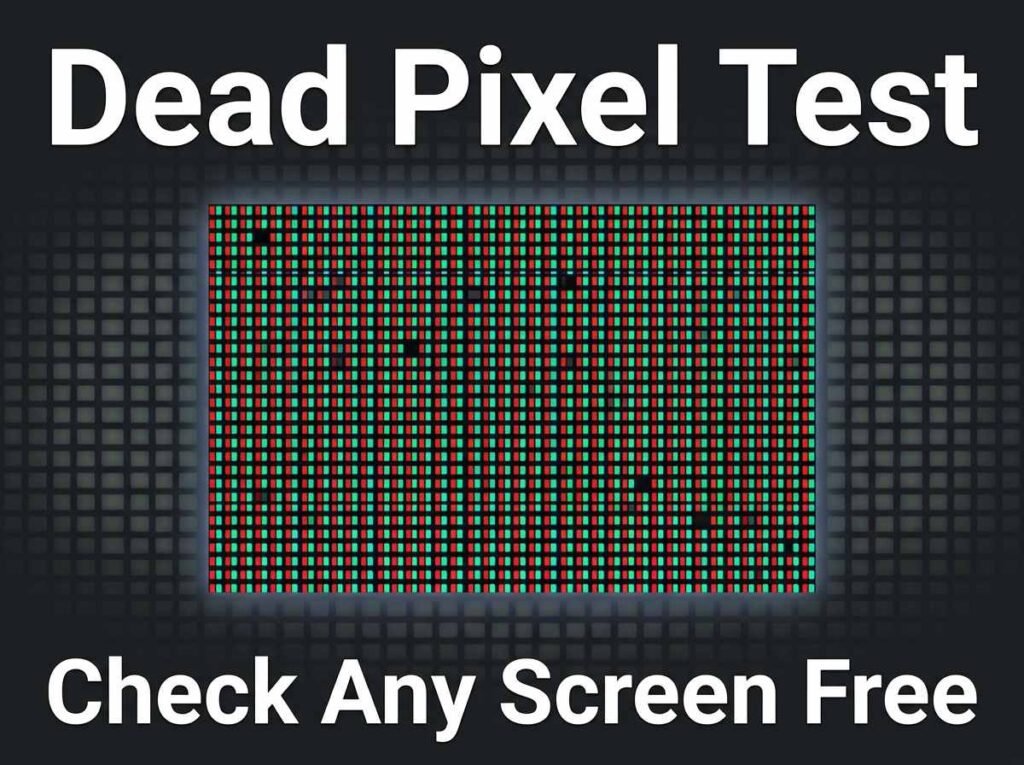
Buying a new monitor, phone, or TV? A quick dead pixel test can save you from keeping a faulty screen. Dead and stuck pixels are tiny display faults that are almost impossible to spot during normal use, but they show up instantly against a solid block of color. The good news is you can check any screen in a couple of minutes using a free full-screen color tool, with nothing to install.
This guide explains what dead pixels are, how to test for them, and what to do if you find one.
What Is a Dead Pixel?
A pixel is one of the millions of tiny dots that make up your screen. Each one produces color by mixing red, green, and blue. A dead pixel is one that no longer lights up at all, so it stays black no matter what the screen displays. Because it produces no light, it appears as a small dark dot that never changes.
Dead pixels are most noticeable against bright, solid colors, which is exactly why a full-screen color test is the standard way to find them. On a normal photo or web page, a single dark dot blends in and is easy to miss.
Dead Pixel vs Stuck Pixel
People often use these terms interchangeably, but they are different, and the difference matters:
- Dead pixel — receives no power and stays permanently black. These are usually not fixable.
- Stuck pixel — stays locked on a single color, such as red, green, or blue, because it is not changing state. These can sometimes be fixed.
A dead pixel test helps you tell them apart. A dot that stays black on every color is likely dead, while a dot that shows a fixed color is likely stuck. Knowing which one you have tells you whether it is worth trying to fix.
How to Test for Dead Pixels
Testing is simple with a full-screen color tool. Here is the process:
- Open a color screen tool and go full screen.
- Set the screen to solid white and look closely for any dark dots.
- Switch to solid black and look for any bright dots that should be off.
- Cycle through red, green, and blue, checking for dots that are the wrong color.
- Move slowly across the whole screen, including the corners and edges.
Each color reveals different faults, which is why you cycle through all of them. A dead pixel shows up clearly on the white and colored screens, while a stuck pixel is easiest to spot on black or on the color it is stuck away from.
Which Colors to Use and Why
Using the right sequence of colors makes the test reliable:
- White exposes dead or dark pixels that fail to light up.
- Black exposes stuck or bright pixels that should be off.
- Red, green, and blue expose pixels where one of the three color channels has failed.
Running all five is the standard method, because a pixel can fail in one channel while working in the others. A tool that lets you switch colors quickly in full screen makes the whole check take just a minute or two.
What to Do If You Find a Dead Pixel
If you find a fault, your next step depends on the type:
- A truly dead pixel usually cannot be repaired, since it receives no power. If the screen is new, this is a strong reason to return or exchange it under warranty.
- A stuck pixel can sometimes be revived. Gentle methods include running rapidly changing colors on that area, or software designed to cycle pixels quickly. Results vary, and there is no guarantee.
If you are testing a brand-new device, check the manufacturer’s dead pixel policy. Many have a threshold for how many faulty pixels qualify for a replacement, so a quick test right after purchase protects you while the return window is open.
Other Uses for a Color Screen
A full-screen color tool is handy beyond pixel testing. You can use it to check a monitor for uneven backlight or color patches, create a solid colored light source for photography or video, preview a background color at full size, or display a clean color on a projector or second screen. It is a simple tool with a surprising number of uses.
Frequently Asked Questions
How do I test my monitor for dead pixels?
Open a full-screen color tool and cycle through white, black, red, green, and blue. Look closely for any dot that stays dark or shows the wrong color across the whole screen.
What is the difference between a dead pixel and a stuck pixel?
A dead pixel stays permanently black because it gets no power, while a stuck pixel stays locked on one color. Stuck pixels can sometimes be fixed; dead ones usually cannot.
Can a dead pixel be fixed?
A true dead pixel usually cannot be repaired. A stuck pixel can sometimes be revived by rapidly cycling colors, though success is not guaranteed.
Do I need to install software to test for dead pixels?
No. A browser-based color screen tool lets you run a full dead pixel test with nothing to download or install.
Test Your Screen Now
A dead pixel test takes only a minute and can save you from keeping a faulty display. Open the color screen tool, go full screen, and cycle through the colors to check any monitor, phone, or TV. While you are at it, the color converter is handy for working with any HEX, RGB, or HSL color you need.