Free Image Tools for Creators and Websites in 2026
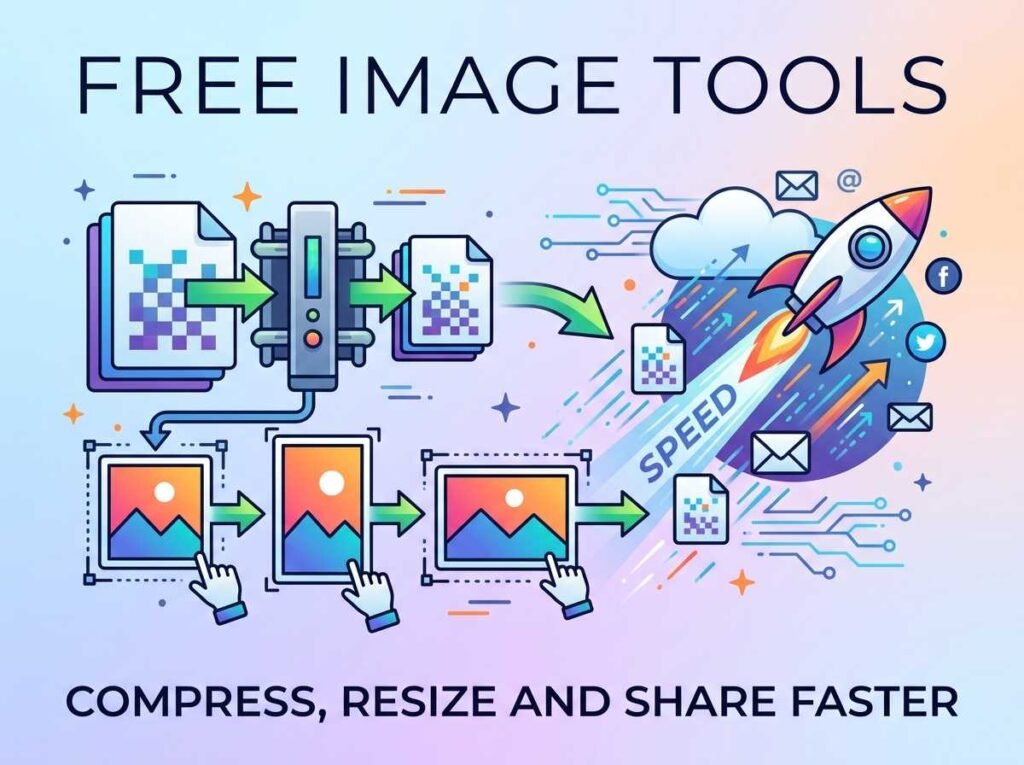
Images make your content look great, but they also cause the most common headaches online — slow pages, wrong dimensions, and files that are too big to share. The right free image tools fix all of that in seconds, without an account or an upload. Whether you run a website, post on social media, or both, a small set of browser-based tools covers nearly everything you need.
This guide rounds up the most useful free image tools, what each one solves, and how they work together to keep your visuals fast and sharp.
Why Browser-Based Image Tools Are Better
Desktop editing software is powerful but heavy, and most image jobs are simple. Shrinking a photo, cropping to a platform size, or making a QR code does not require a full editor. Browser tools handle these tasks instantly, with nothing to install and no learning curve.
There is also a privacy advantage. The best image tools do all their work in your browser using your device’s own processing, so your photos are never uploaded to a server. That keeps personal and client images completely private, which matters more than many people realize.
Image Compressor: Faster Pages and Smaller Files
Oversized images are the number one cause of slow websites. A single uncompressed photo can be several megabytes, which drags down load times and frustrates visitors on mobile data. Compressing images before you use them is the easiest performance win available.
An image compressor shrinks JPG, PNG, and WebP files dramatically while keeping them sharp. You control the quality, watch the new file size update live, and download a much lighter version. Because it runs locally, even large photos compress in a second and never leave your device.
Image Resizer: The Right Size for Every Platform
Every social platform wants a different image size, and getting it wrong means awkward cropping or blurry uploads. Posting a square photo where a vertical one belongs wastes space and looks unprofessional.
An image resizer includes one-tap presets for Instagram, YouTube, TikTok, Facebook, and more, so you never have to memorize dimensions. Pick a preset or enter custom sizes, choose how the image should fit, and download a perfectly sized version ready to post.
QR Code Generator: Bridge Print and Digital
QR codes turn any printed item — a flyer, a business card, a product label — into a tappable link. They are everywhere now because they work, and making one should be simple and free.
A QR code generator creates a custom code for any link or text. You can change the colors to match your brand, adjust the size, and download as a PNG for the web or an SVG for print, where it stays crisp at any scale.
Color Converter: Keep Your Visuals Consistent
Consistent color is what makes content look polished. Designers and creators constantly need to translate a brand color between formats — HEX for the web, RGB for editing, HSL for adjusting shades.
A color converter switches between HEX, RGB, and HSL instantly and builds a matching palette, so your graphics, thumbnails, and pages all share the same exact colors.
A Simple Image Workflow for Creators
Used together, these tools form a fast routine that keeps every image you publish lean and correctly sized:
- Resize the image to the exact dimensions of the platform you are posting to.
- Compress it so the file is as small as possible without looking worse.
- Pull brand colors with the color converter for any text overlays or graphics.
- Generate a QR code when you want to link a printed item back to your content.
This loop takes a couple of minutes and prevents the slow pages and awkward crops that make content look unprofessional.
Will These Tools Reduce My Image Quality?
Used correctly, no. Compressing at a sensible quality level cuts file size dramatically with little visible difference, and resizing an image smaller keeps it sharp. The only thing to avoid is enlarging an image far beyond its original size, which can make it look soft. Always start from the largest version you have, and your images will stay crisp through every step.
Frequently Asked Questions
Are these image tools really free?
Yes. Every tool runs in your browser at no cost, with no account or download, and no watermarks added to your images.
Are my images uploaded to a server?
No. The tools process everything on your device, so your photos stay completely private and never get uploaded.
Which tool should I use first?
If your site is slow, start with the image compressor. If your posts look badly cropped, start with the image resizer.
Do I need design skills to use them?
No. Each tool does one job with simple controls, so anyone can resize, compress, or generate a QR code in seconds.
Start With the Image Problem You Have Now
The best tool is the one that fixes your current issue. If pages load slowly, open the image compressor. If your social posts look off, start with the image resizer. Each one is free, instant, and private.