How to Get More Google Reviews with a QR Code
How to Get More Google Reviews with a QR Code
The biggest barrier to getting Google reviews is friction. Your happy customer leaves your business, gets busy, and forgets to write a review. A Google Review QR code eliminates that barrier by putting the review form one scan away — right at the moment when the experience is fresh and the customer is most likely to leave positive feedback.
Why Google Reviews Matter
Google reviews directly affect three things that determine whether new customers find and choose your business. First, review count and rating influence your local search ranking. Businesses with more positive reviews appear higher in Google Maps and local search results. Second, the star rating is the first thing potential customers see, and most people will not consider a business below 4.0 stars. Third, review content provides social proof — specific positive comments about your service, food, products, or staff convince undecided customers to give you a try.
A business with 50 reviews at 4.5 stars will almost always outperform a competitor with 5 reviews at 5.0 stars, because the volume signals credibility and the rating signals quality.
How to Create a Google Review QR Code
First, find your Google review link. Open Google Maps, search for your business, click on it, and click “Write a review.” Copy the URL from your browser’s address bar. Alternatively, go to your Google Business Profile dashboard and find the review link in the marketing section.
Next, open the Google Review QR code generator, paste your review link, customize the colors if you want, and download the code. When customers scan it, their phone opens the Google review form directly — they see the star rating selector and the text box immediately, with no extra steps.
Where to Place Your Review QR Code
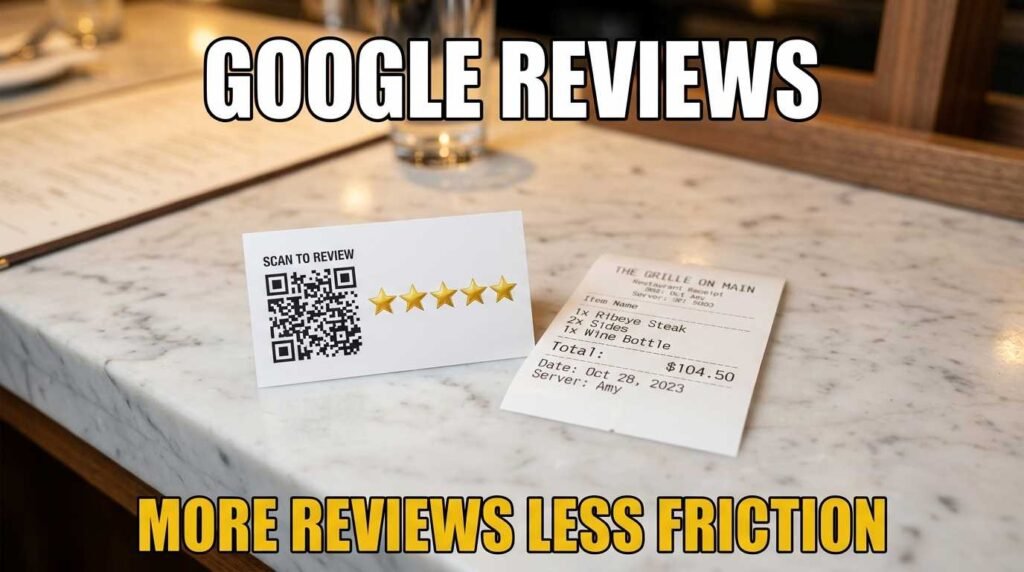
The key is placement at the moment of highest satisfaction. For restaurants, put the QR code on the receipt, on a small card presented with the bill, or on a table tent near the payment area. For retail stores, place it near the checkout counter or on the receipt. For service businesses like salons, clinics, and repair shops, hand a card with the QR code to the customer at the end of their visit.
Add a brief call to action next to the code. Something simple works best: “Enjoyed your visit? Leave us a review” or “Your feedback helps us improve — scan to review.” Avoid pushy language or offering incentives for reviews, which violates Google’s policies.
Tips for Getting More Reviews
Timing matters more than asking. A QR code presented at the right moment — when the customer is satisfied and still in your space — converts far better than a follow-up email sent hours later. The physical presence of the code serves as a gentle, non-pressuring reminder.
Train your staff to mention the QR code naturally. A simple “If you enjoyed your meal, we would love a review — the QR code is on your table” is enough. Staff who have positive interactions with customers are the best review generators because the customer wants to mention them by name.
Respond to every review, positive and negative. This signals to future reviewers that their feedback will be read and valued, which increases the likelihood of them taking the time to write one.
Handling Negative Reviews
Making reviews easy means you will also receive negative ones. This is actually healthy — a business with only five-star reviews looks suspicious. Respond to negative reviews professionally, acknowledge the issue, and offer to resolve it. Future customers read your response as much as the complaint itself, and a thoughtful response to criticism can actually build trust.
Frequently Asked Questions
How do I find my Google review link?
Search your business on Google Maps, click Write a Review, and copy the URL. Or go to your Google Business Profile dashboard and find the review link in the marketing section.
Does the QR code take customers directly to the review form?
Yes. The link opens the Google review form with the star rating and text box visible immediately. No extra navigation needed.
Is it against Google’s rules to ask for reviews?
No. Google encourages businesses to ask customers for reviews. What violates the policy is offering incentives (discounts, free items) in exchange for reviews, or selectively asking only happy customers.
How many reviews do I need?
There is no magic number, but businesses with 20 or more reviews see significant improvements in local search visibility. Aim for a steady stream rather than a burst.
Create Your Review QR Code
Start collecting more reviews today. Open the Google Review QR code generator, paste your review link, and print the code. For other QR code types, see the full QR code generator with WiFi, vCard, WhatsApp, payment, and social media options.