How to Create a WiFi QR Code for Your Business
How to Create a WiFi QR Code for Your Business
Typing a long WiFi password on a phone keyboard is one of those small frustrations that every business can eliminate. A WiFi QR code lets guests connect to your network by scanning a code with their phone camera — no typing, no asking the staff, no writing it on a chalkboard that everyone photographs anyway. This guide shows how to create one, where to put it, and what to keep in mind about security.
What Is a WiFi QR Code?
A WiFi QR code encodes three pieces of information: your network name (SSID), the password, and the encryption type (WPA/WPA2/WPA3 or WEP). When a phone scans the code, it reads this information and offers to connect to the network automatically. The user taps confirm and they are connected — the entire process takes about three seconds.
This works on all modern iPhones running iOS 11 or later and all Android phones running Android 10 or later. The camera app reads the QR code natively without needing a separate scanning app.
How to Create a WiFi QR Code
Open the WiFi QR code generator and enter three things: your network name exactly as it appears in your WiFi settings, the password (case-sensitive), and the encryption type (WPA/WPA2 for most modern networks). If your network is hidden, check the hidden network box. The QR code generates instantly.
Customize the colors to match your brand if you want, then download as PNG for digital display or SVG for print. The code is generated entirely in your browser — your WiFi password is never sent to any server.
Where to Display Your WiFi QR Code
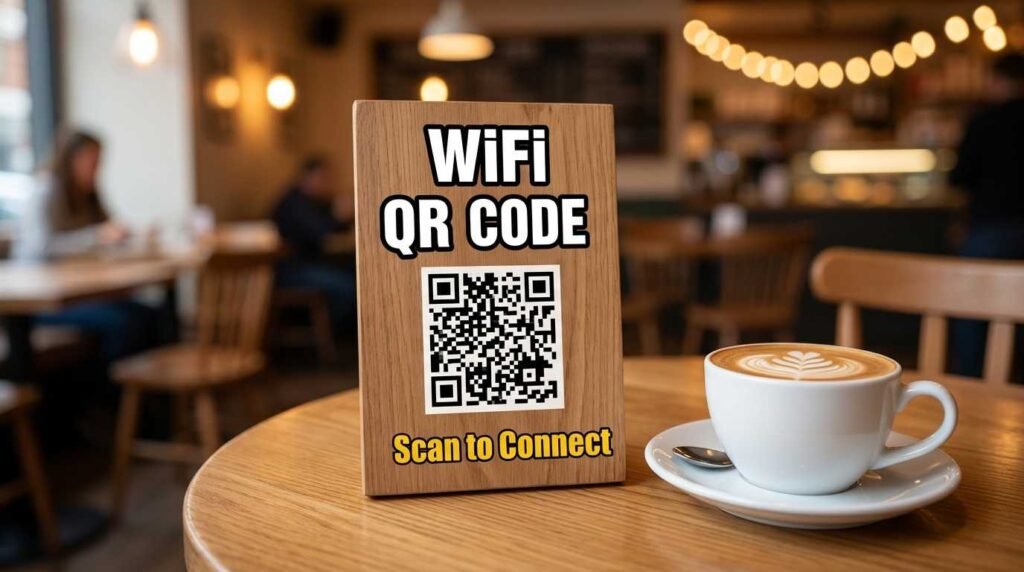
The best placement depends on your business type. For restaurants and cafes, print the QR code on a small table tent, on the menu, or on a sticker at each table. For hotels, place it on the nightstand card alongside other room information. For offices, print a small poster near the reception area or conference rooms. For Airbnbs, include it in the welcome guide or frame it near the router.
A good WiFi QR code display includes the code itself, the network name below it (so people can verify they are connecting to the right network), and a brief instruction like “Scan to connect to WiFi.” You do not need to print the password — that is the point of the QR code.
Security Considerations
A WiFi QR code contains your password in an encoded format, which means anyone who scans the code gets network access. This is fine for a guest network, which is the recommended approach for businesses. Set up a separate guest network on your router with its own password, and create the QR code for that network only. Keep your main business network private.
If you change the WiFi password, you need to create a new QR code and replace the printed ones. The old code will still scan but will not connect because the password no longer matches.
For home use, consider whether you want all visitors to have permanent access. A QR code is convenient but means anyone who scans it once has the password saved in their phone. If you rotate your password periodically, generate a new code each time.
Guest Network vs Main Network
Most modern routers support creating a separate guest network. This is the ideal setup for businesses using WiFi QR codes. The guest network gives internet access but isolates guest devices from your business computers, printers, and files. If someone on the guest network has malware on their device, it cannot spread to your business systems.
Set up bandwidth limits on the guest network so heavy users do not slow down your business operations. Many routers let you cap guest bandwidth at 10 to 25 percent of your total connection.
Common Issues and Fixes
If the QR code does not connect guests to your WiFi, check three things. First, make sure the network name in the QR code matches your SSID exactly, including capitalization and spaces. Second, verify the password is correct — WiFi passwords are case-sensitive. Third, confirm you selected the right encryption type. Most modern networks use WPA2 or WPA3. WEP is outdated and rarely used.
If the code scans but shows an error on older phones, the phone may not support WiFi QR codes natively. This is rare with phones from the last five years but can happen with very old devices. In that case, the guest will need to enter the password manually.
Printing Tips
Print the QR code at a minimum size of 3 by 3 centimeters for close-range scanning like table tents. For wall posters that people scan from a meter or more away, use at least 10 by 10 centimeters. Download the SVG version for print — it scales to any size without losing quality, unlike PNG which can appear blurry when enlarged.
Use a white or very light background behind the QR code. Dark or busy backgrounds reduce scan reliability. Laminate the printed code to protect it from spills and handling, especially in food service environments.
Frequently Asked Questions
Does a WiFi QR code share my password?
Yes, the password is encoded inside the QR code. Anyone who scans it gets access. Use a guest network to keep your main network secure.
Does it work on both iPhone and Android?
Yes. iPhone (iOS 11+) and Android (10+) both support WiFi QR codes natively through the camera app.
What happens if I change my WiFi password?
The old QR code stops working because the encoded password no longer matches. Create a new code with the updated password and replace the printed ones.
Is my password uploaded when I create the code?
Not with a browser-based generator like the WiFi QR code generator on fixupeasy. Everything runs locally in your browser.
Create Your WiFi QR Code
Stop spelling out your password for every guest. Open the WiFi QR code generator, enter your network details, and print the code. For other QR code types, see the full QR code generator with 15 types including vCard, WhatsApp, payments, and social media.