How to Make a QR Code for Free in Seconds
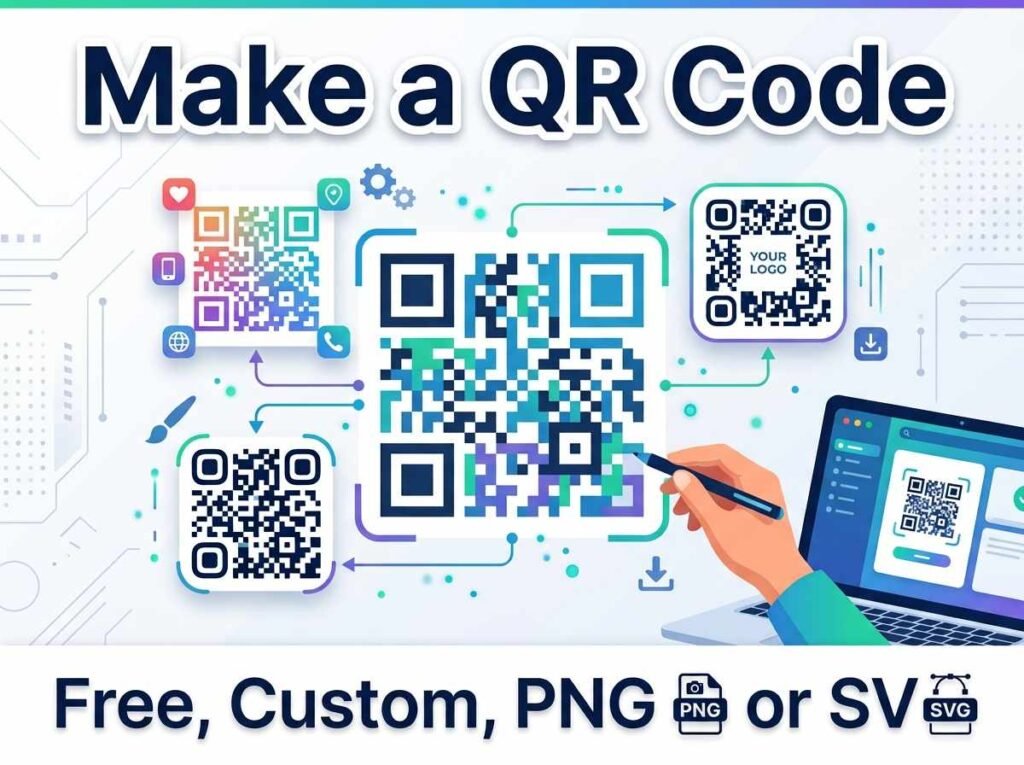
QR codes turn anything printed into a tappable link, which is why they are now on menus, packaging, business cards, and posters everywhere. The good news is that you can make a QR code for free in seconds, customize how it looks, and download it for both web and print. You do not need an app or an account.
This guide explains what a QR code can hold, how to create one, and how to make sure it scans reliably every time.
What a QR Code Can Contain
A QR code is simply a pattern that stores information a camera can read. Most often that information is a website link, so scanning it opens a page. But a QR code can hold other things too, such as plain text, contact details, or Wi-Fi credentials.
For the vast majority of uses, you will be encoding a URL — a link to your website, a product page, a menu, or a social profile. The code becomes a fast bridge from the physical world to your online content.
How to Make a QR Code
Creating one is quick with a QR code generator. You paste in your link, adjust how it looks, and download the result.
The steps are simple:
- Type or paste the URL or text you want the code to open.
- Adjust the size and choose colors that suit your design.
- Pick an error-correction level for reliability.
- Download the code as a PNG for web or an SVG for print.
Because the code is generated directly from your text, it works forever and never depends on the tool that made it.
Choosing Colors That Still Scan
You can color a QR code to match your brand, but contrast is essential. Scanners read the code by telling dark modules from light ones, so you need a clearly dark pattern on a clearly light background. A dark blue code on white scans perfectly; a pale yellow code on white may not scan at all.
The safest approach is a dark foreground on a light background. Avoid inverting the colors, since many scanners struggle with a light pattern on a dark background. When in doubt, test the code with your phone before printing it.
Understanding Error Correction
QR codes include built-in error correction, which lets them still scan even when part of the code is dirty, damaged, or covered. There are four levels, from low to high. Higher levels add more redundancy, so the code survives more damage, but the pattern becomes denser.
For screens and clean printing, a medium level is a good default. If your code will go on packaging, signage, or anything that might get scuffed, choose a higher level so a scuff or a small logo overlay does not stop it from working.
PNG or SVG: Which to Download
The format you choose depends on where the code will appear:
- PNG is a standard image, perfect for websites, emails, and quick sharing.
- SVG is a vector format that stays perfectly sharp at any size, which makes it ideal for print, large posters, and signage.
A simple rule is to use PNG for anything on a screen and SVG for anything that will be printed, especially at a large size.
Where QR Codes Work Best
QR codes shine anywhere you want to connect print to digital:
- Business cards that open your portfolio or contact page
- Product packaging that links to instructions or registration
- Posters and flyers that lead to an event page
- Restaurant tables that open a digital menu
In each case, the code removes the friction of typing a long URL, which means more people actually reach your content.
Frequently Asked Questions
Is it really free to make a QR code?
Yes. You can create, customize, and download a QR code for free with no account, and the code works permanently.
Do QR codes expire?
No. A code generated directly from your link never expires and does not depend on the tool that created it.
Why is my QR code not scanning?
The most common reasons are low contrast between the colors or enlarging a low-resolution image. Use a dark code on a light background and download an SVG for large print.
Should I download PNG or SVG?
Use PNG for web and screens, and SVG for print or large sizes, since SVG stays crisp at any scale.
Make Your QR Code Now
Connecting print to digital takes just a few seconds. Open the QR code generator, paste your link, pick your colors, and download a custom code ready for web or print. For more ways to handle your visuals, see our guide to the free image tools for creators and websites.