How to Create a QR Code for a Business Card (vCard)
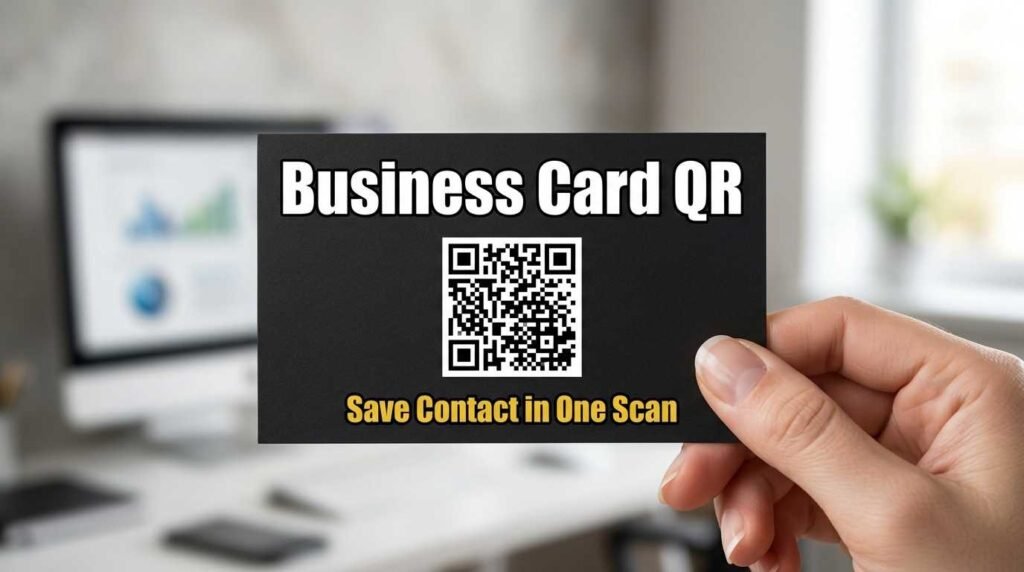
How to Create a QR Code for a Business Card
A QR code on a business card does something a printed card alone cannot — it saves your contact details directly to the recipient’s phone in one tap. No manual typing of phone numbers or email addresses, no lost cards that end up in a drawer. The contact is in their phone permanently, ready to call, email, or text whenever they need you.
URL vs vCard: Which QR Code for a Business Card?
Most people default to putting a URL QR code on their business card — it links to their website or LinkedIn profile. This works but misses the bigger opportunity. A vCard QR code stores your full contact information — name, phone, email, company, title, website, and address — and when scanned, the phone offers to save everything directly to contacts.
The difference is significant. A URL QR code makes someone visit a page. A vCard QR code makes someone save you as a contact. Which one leads to more follow-up conversations? The saved contact, every time.
How to Create a vCard QR Code
Open the vCard QR code generator and fill in the fields you want to share: your first and last name, phone number, email address, company name, job title, website URL, and physical address. All fields except the name are optional — include what is relevant for your networking context.
Customize the QR code colors to match your business card design. Dark foreground colors on a white or light background work best for scannability. Download as SVG for print, which scales perfectly to any size your card designer needs.
Design Tips for Business Card QR Codes
Place the QR code on the back of the card with a clear call to action like “Scan to save my contact” or simply “Save Contact.” The code should be at least 2 by 2 centimeters — smaller sizes may not scan reliably, especially on textured or glossy card stock.
Leave white space around the QR code. The quiet zone — the blank margin around the code — is essential for scanners to detect the boundaries. A QR code jammed against other design elements or the card edge will scan unreliably.
Consider adding your logo to the center of the QR code. Set error correction to H (High) before adding the logo, which allows up to 30 percent of the pattern to be covered. The QR code generator supports logo upload directly.
What Information to Include
For most professionals, the essential fields are name, mobile phone, email, company, and title. These are the details someone needs to follow up after meeting you. The website and address are useful additions but not critical for every industry.
For sales professionals, include your direct phone number rather than a general office line. For freelancers, your portfolio URL is more important than a company name. For executives, your LinkedIn profile URL in the website field drives professional networking. Tailor the vCard to how people actually contact you.
Testing Before Printing
Always test the QR code by scanning it with at least two different phones before sending the card design to print. Check that every field displays correctly in the phone’s contact card — especially the phone number format and email address. A typo in the vCard is worse than a typo on the printed card because people trust the scanned data over what they read.
Print a test batch of 10 cards before ordering 500. Scan the printed code from different angles and distances. Some paper finishes — especially very glossy or heavily textured stock — can reduce scan reliability.
Frequently Asked Questions
Should I use a URL or vCard QR code on my business card?
vCard is better for networking because it saves your contact details directly to the recipient’s phone. A URL just opens a web page that they may close and forget.
How big should the QR code be on a business card?
At least 2 by 2 centimeters, with a white quiet zone of at least 3 millimeters around it. The back of the card is the best placement.
Can I change my details after printing?
No. A vCard QR code is static — the data is encoded in the pattern. If your phone number or email changes, you need to create a new QR code and reprint your cards.
Does it work on both iPhone and Android?
Yes. Both platforms recognize vCard QR codes natively and offer to save the contact directly.
Digital Business Cards vs Physical Cards
A QR code does not replace the physical business card — it enhances it. The physical card creates the initial impression and gives people something tangible. The QR code ensures the contact details actually make it into their phone rather than sitting in a pocket until it is forgotten. The best business cards in 2026 combine a clean, minimal front design with a QR code on the back that saves everything digitally.
For networking events where you meet dozens of people, the QR code solves the problem of remembering who gave you which card. Each scanned contact lands in the phone with the correct name, company, and role — no manual data entry needed after a long conference day.
Create Your Business Card QR Code
Make your business card work harder. Open the vCard QR code generator, enter your details, and download the code for your card designer. For all QR code types, see the full QR code generator.