How to Create a WhatsApp QR Code for Your Business
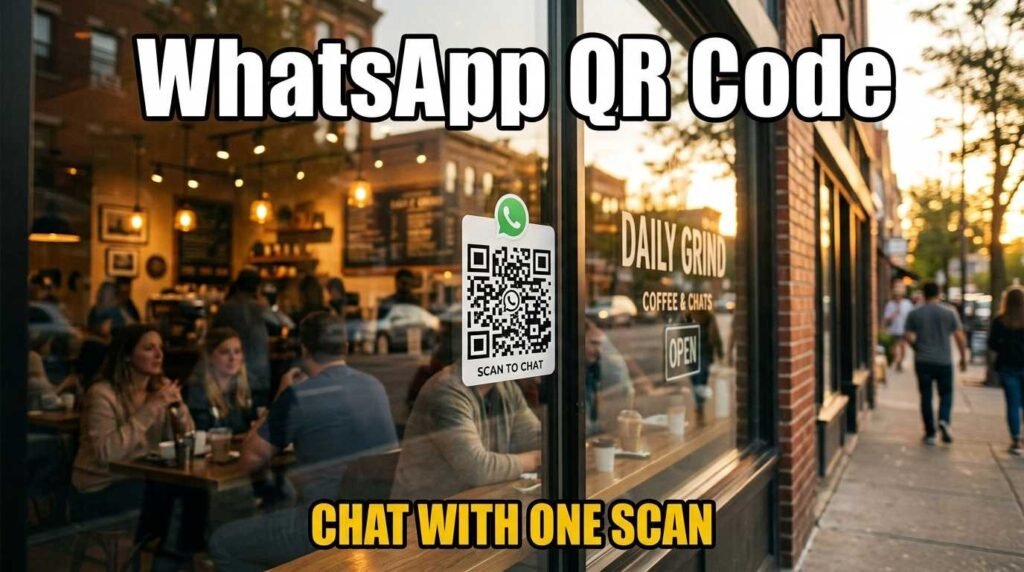
How to Create a WhatsApp QR Code for Your Business
A WhatsApp QR code is the fastest way to let customers start a conversation with your business. They scan, WhatsApp opens with your number and a pre-filled message, and they tap send. No saving your number to contacts first, no searching for your business name, no friction at all. For any business that uses WhatsApp for customer communication, this is one of the simplest and most effective tools you can deploy.
How WhatsApp QR Codes Work
A WhatsApp QR code encodes a wa.me link — a special URL format that opens a WhatsApp chat with a specific phone number. The link can include a pre-written message so the customer does not have to think about what to type. When scanned, the phone opens WhatsApp (or prompts to install it), shows the pre-filled message, and the customer just taps send to start the conversation.
The key advantage is that the customer does not need to have your number saved in their contacts. The wa.me link bypasses the contacts requirement entirely, opening a chat directly.
How to Create a WhatsApp QR Code
Open the WhatsApp QR code generator and enter your phone number with the country code (without the plus sign or spaces — for example, 15551234567 for a US number). Add a pre-filled message like “Hi, I’d like to know more about your services” or “I have a question about my order.” The message is optional but reduces friction because the customer does not have to think about what to write.
Customize the colors, download as PNG or SVG, and you are ready. The code is generated in your browser — your phone number is not stored anywhere.
Best Pre-Filled Messages by Business Type
The pre-filled message should match the context where the QR code appears. For a restaurant menu, use “Hi, I’d like to place an order.” For a product label, use “Hi, I have a question about [product name].” For a business card, use “Hi, we met at [event name]. Let’s connect!” For a storefront window, use “Hi, I’m interested in your services.”
Keep the message short and specific. Customers can edit it before sending, so it is really a conversation starter rather than a commitment. The goal is to reduce the blank-page anxiety of starting a message with a business.
Where to Place Your WhatsApp QR Code
Product packaging and labels convert customers who already bought your product into active chat contacts. They scan when they have a question, need support, or want to reorder. This is especially effective for consumable products where reordering is common.
In-store signage works for businesses where customers might have questions but do not want to wait for staff. A “Chat with us on WhatsApp” QR code near the entrance or fitting room gives customers an alternative communication channel.
Invoices and receipts with a WhatsApp QR code create a direct line for payment questions, returns, and future orders. This is particularly useful for service businesses and B2B companies where follow-up communication is expected.
Business cards with both a vCard QR code and a WhatsApp QR code cover both networking and communication. The vCard saves your details; the WhatsApp code starts a conversation.
WhatsApp Business vs Personal Number
If you use WhatsApp Business (the free business version of WhatsApp), the QR code works the same way. The difference is that WhatsApp Business gives you automated greeting messages, quick replies, a product catalog, and business hours display — all of which enhance the customer experience once they start chatting.
Use your business number, not your personal number, for the QR code. This keeps personal and business conversations separate and allows you to use WhatsApp Business features.
Frequently Asked Questions
Does the customer need my number saved to chat?
No. The wa.me link opens a chat directly without needing the number in contacts. This is the main advantage over simply sharing your phone number.
Can I pre-fill a message?
Yes. Add your message in the generator and it appears pre-typed when the customer opens the chat. They can edit it before sending.
Does this work with WhatsApp Business?
Yes. The QR code works with both regular WhatsApp and WhatsApp Business. Use WhatsApp Business for automated replies and business features.
What if the customer does not have WhatsApp?
Scanning the code prompts them to install WhatsApp. If they choose not to, they cannot chat through this method. Consider offering an alternative contact method alongside the QR code.
Measuring Results from WhatsApp QR Codes
Track incoming WhatsApp conversations to measure QR code effectiveness. WhatsApp Business provides basic analytics showing how many messages you receive and your response time. If you use different pre-filled messages for different QR code placements — “From product label” versus “From store window” — you can identify which placement drives the most conversations.
Response time is critical. Customers who scan a QR code and send a message expect a fast reply — typically within minutes, not hours. If you cannot staff WhatsApp responses during business hours, set up automated greeting messages in WhatsApp Business to acknowledge the message and set expectations for response time.
Create Your WhatsApp QR Code
Start conversations instantly. Open the WhatsApp QR code generator, enter your number and message, and download the code. For QR codes for email, WiFi, vCard, payments, and social media, see the full QR code generator.